Self-Learning Health
See whether the orchestrator is improving for your organization — grade trend, recent-vs-prior movement, and score distribution.
Open the Self-Learning tab
From your organization, open Observability and click Self-Learning. The page reads live from your org's graded runs — no setup required. Use the 7d / 30d / 90d toggle to change the window.
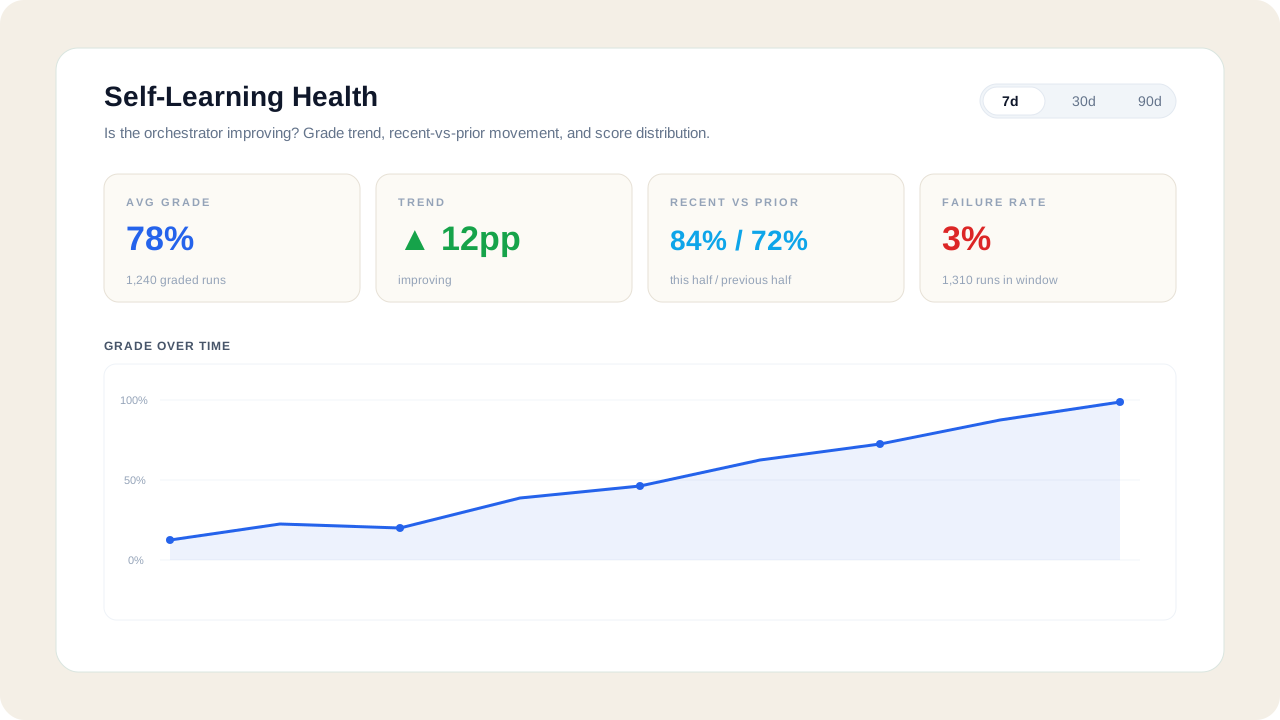
Read the four health cards
The cards summarize whether quality is moving in the right direction:
- Avg grade — average grader score across graded runs in the window.
- Trend — the recent half of the window vs the prior half. A green ▲ with improving means quality is climbing.
- Recent vs prior — the two halves side by side.
- Failure rate — the share of runs that hit a failure class.
Follow the grade trend over time
The line chart plots average grade per day (per week at 90d). A rising line is the self-learning loop working: routing, agents, templates, and models are continuously re-scored from graded outcomes and feedback, and traffic shifts toward whatever grades higher.
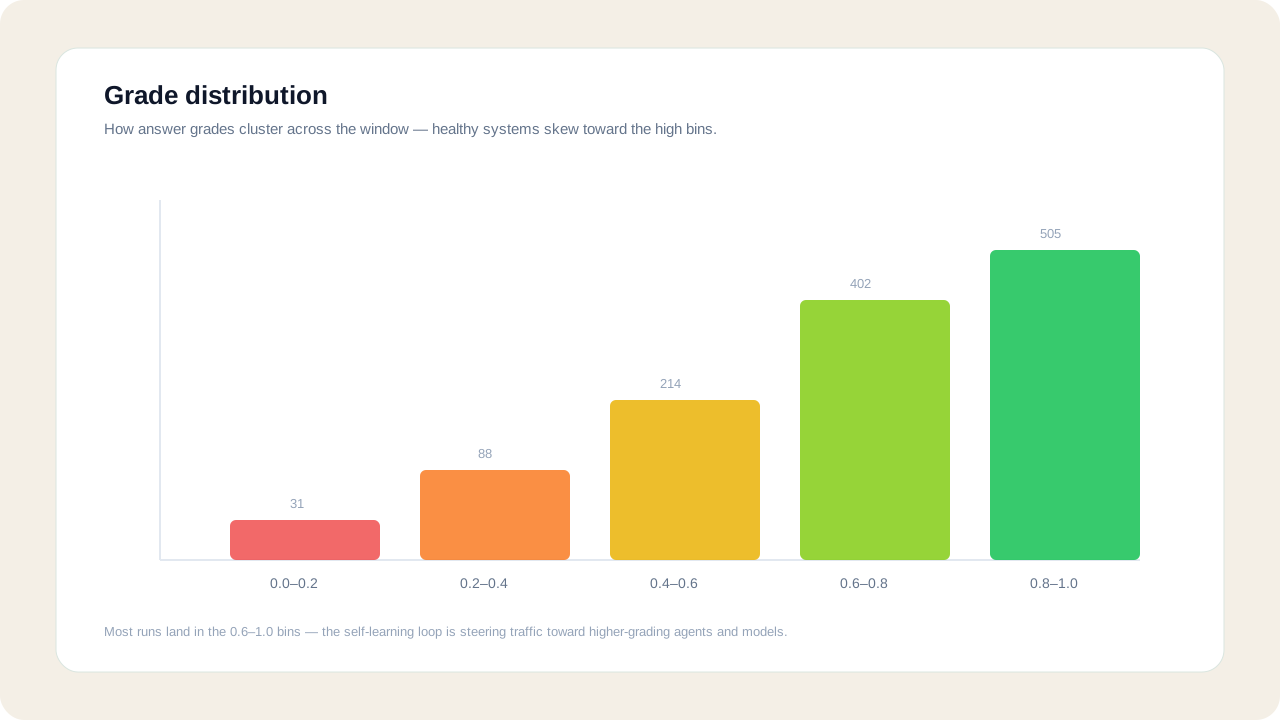
Check the score distribution
The distribution shows how grades cluster. A healthy system skews toward the 0.6–1.0 bins. A fat low-end tail (or a bimodal split) is a signal to inspect recent runs on the Runs and Anomalies tabs.