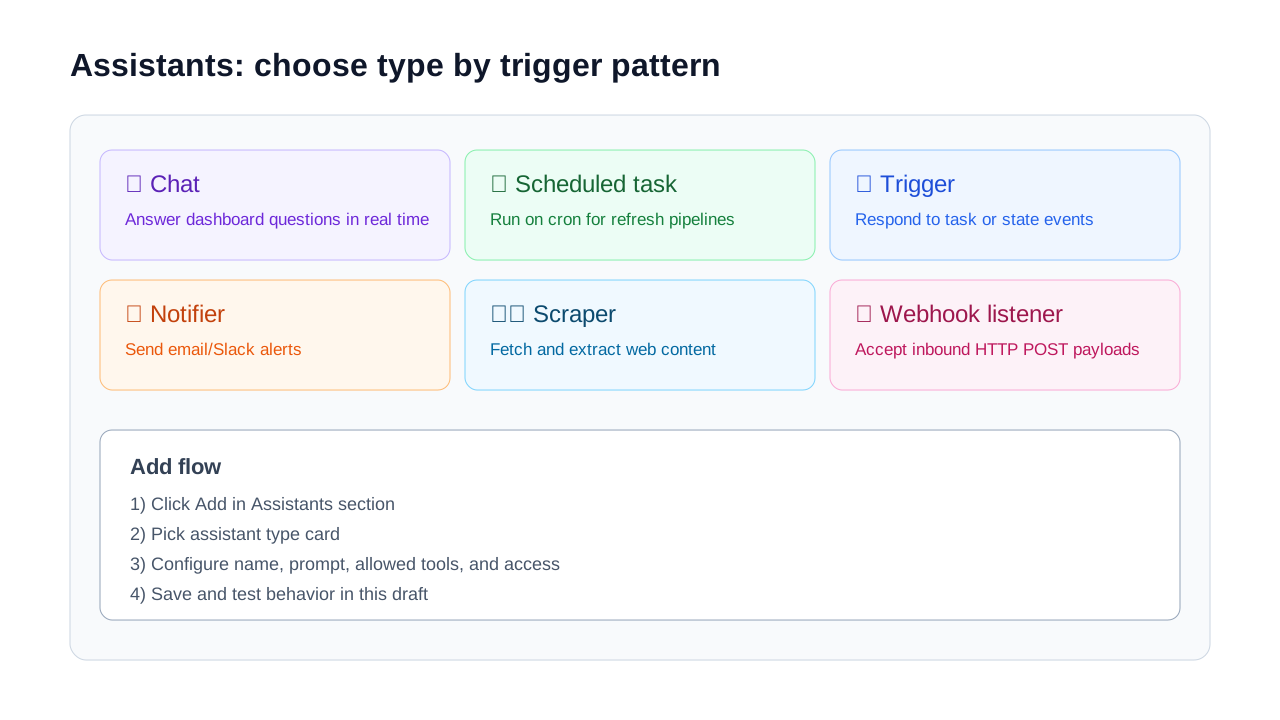
Dashboard Editor Deep Dive
A section-by-section walkthrough of the dashboard edit page: planning, AI spec edits, tasks, buckets, datasources, draft thread, and assistants.
Map the editor sections
The editor is a draft workspace. Changes remain in draft until you publish. The key areas are: Planning prompt, AI edit this spec, Tasks, Buckets, Datasources, Draft Thread, and Assistants.
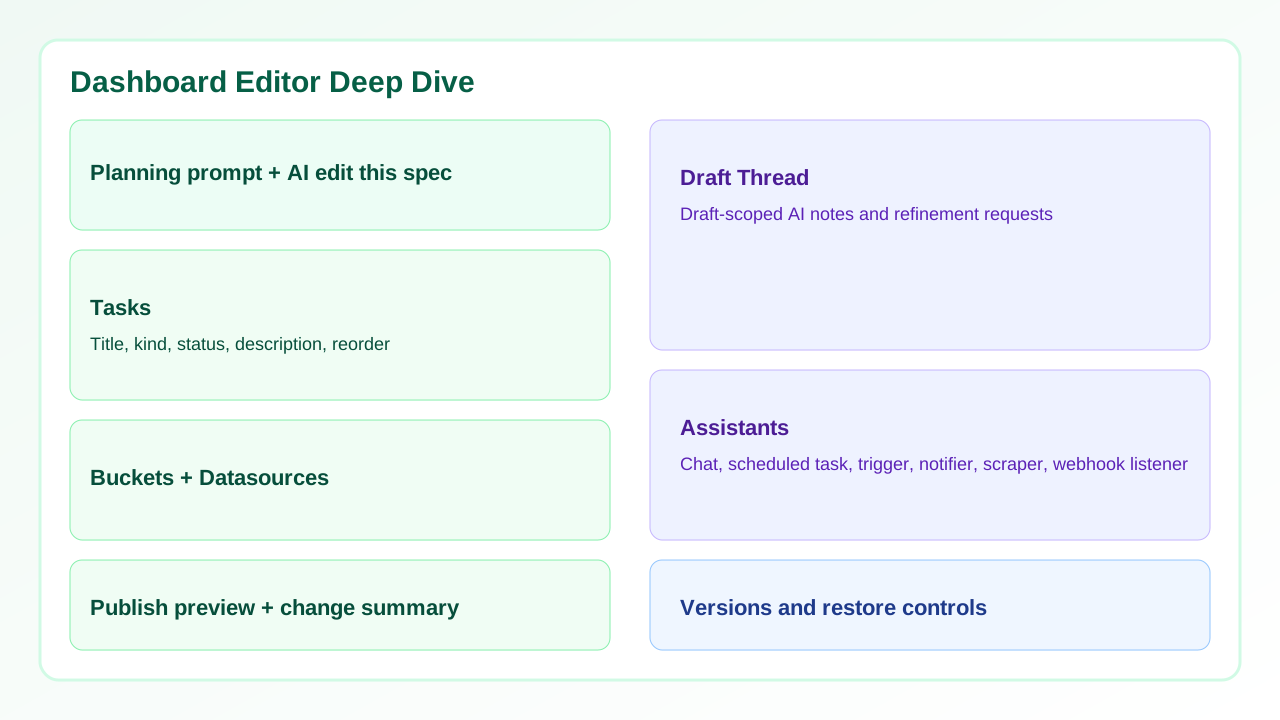
Planning prompt vs AI edit this spec
Planning prompt is intent-first and broad. Use it to describe desired outcomes like "add SLA risk indicators and escalation trends". AI edit this spec is precision-first and applies focused structure changes to the JSON spec.
In short: planning prompt answers what to build; AI edit this spec answers what to change.
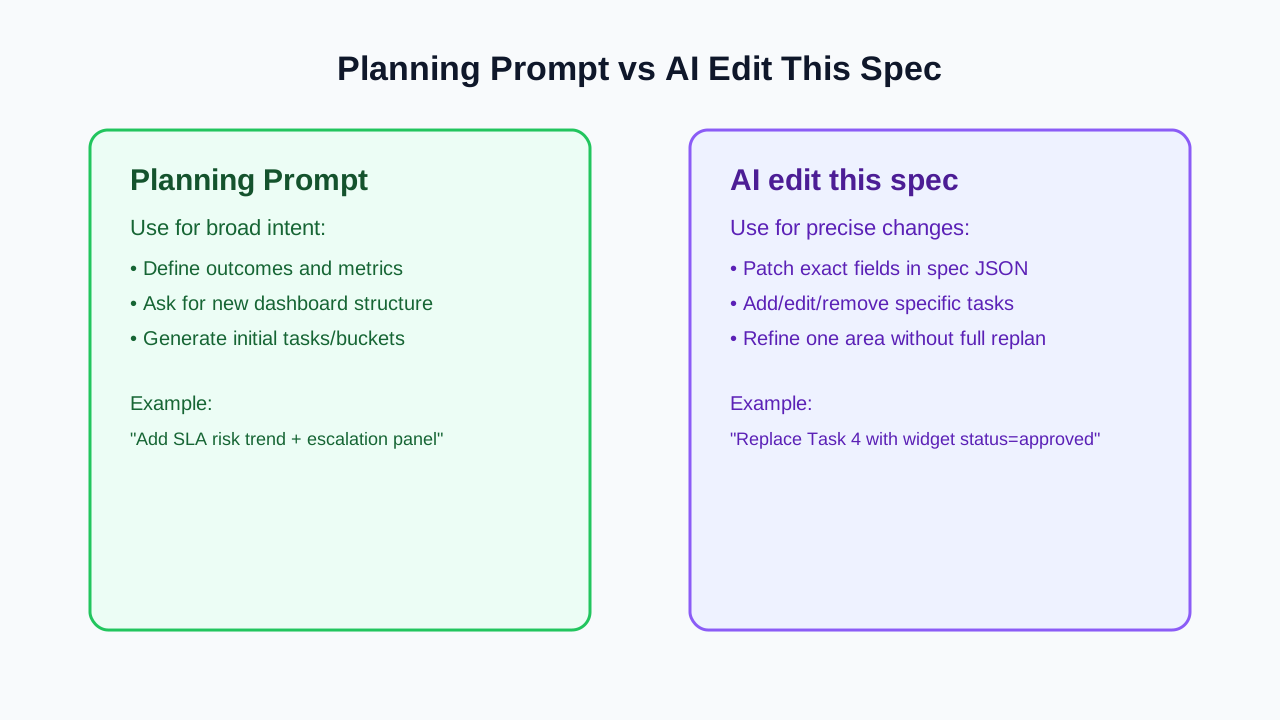
How Tasks work
Tasks are the runtime units in your dashboard definition. A task has a title, kind, status, and description. The Up and Downcontrols reorder tasks in the draft.
Use tasks for chart widgets, pipeline steps, integration actions, and trigger-linked work. If a task row is blank or unclear, fix it before publish.
How Buckets work and where they come from
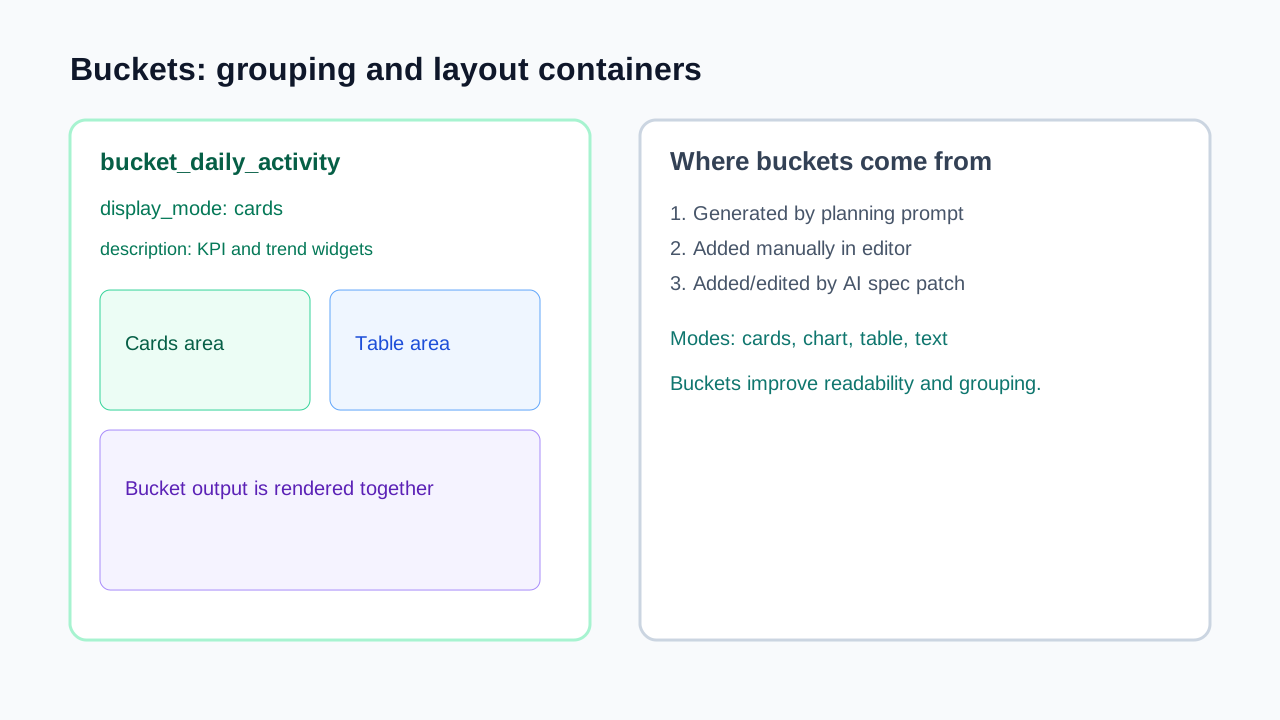
Buckets are grouping/layout containers. They can be generated by planning, created manually, or inserted via AI spec edits. Buckets organize related outputs and influence display modes such as cards, tables, charts, or text sections.
What Datasources are
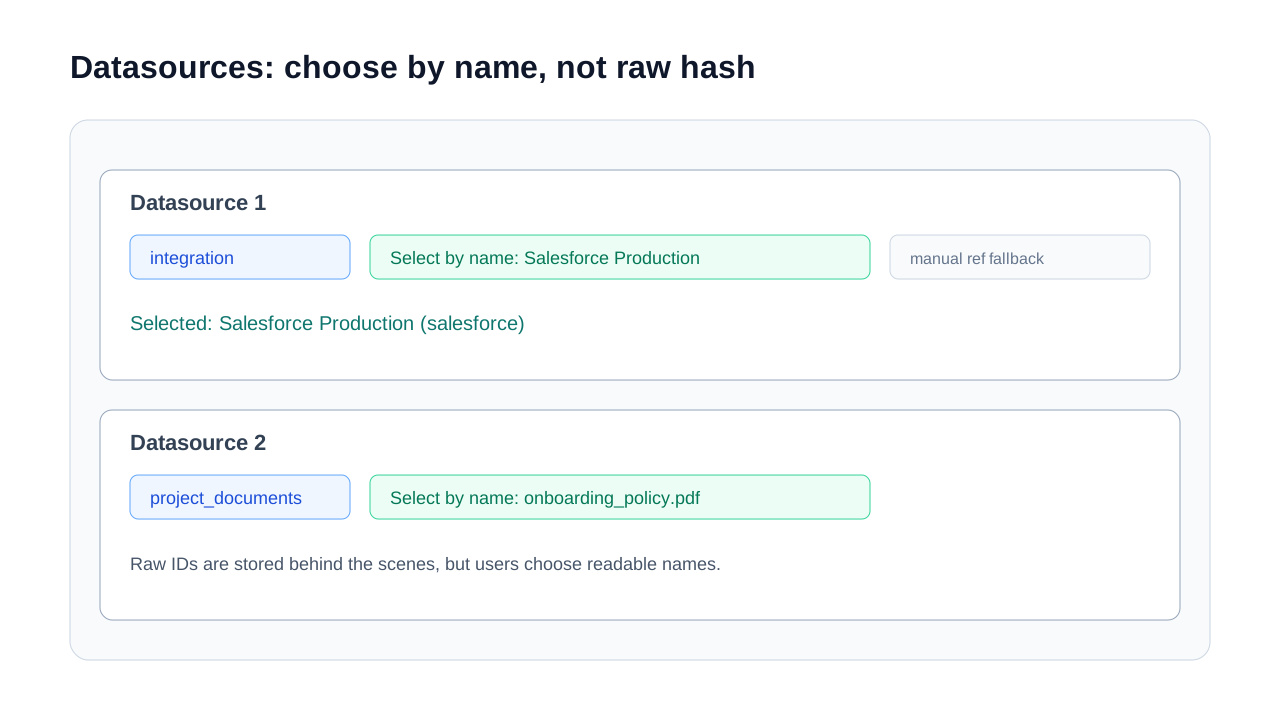
Datasources tell the dashboard where information comes from. Common kinds include integrations, project documents, API-connected sources, and crawl URLs.
Use the name-based selector first. It maps readable names to the stored reference ID. Manual reference input is still available for advanced or edge-case values.
What Draft Thread is for
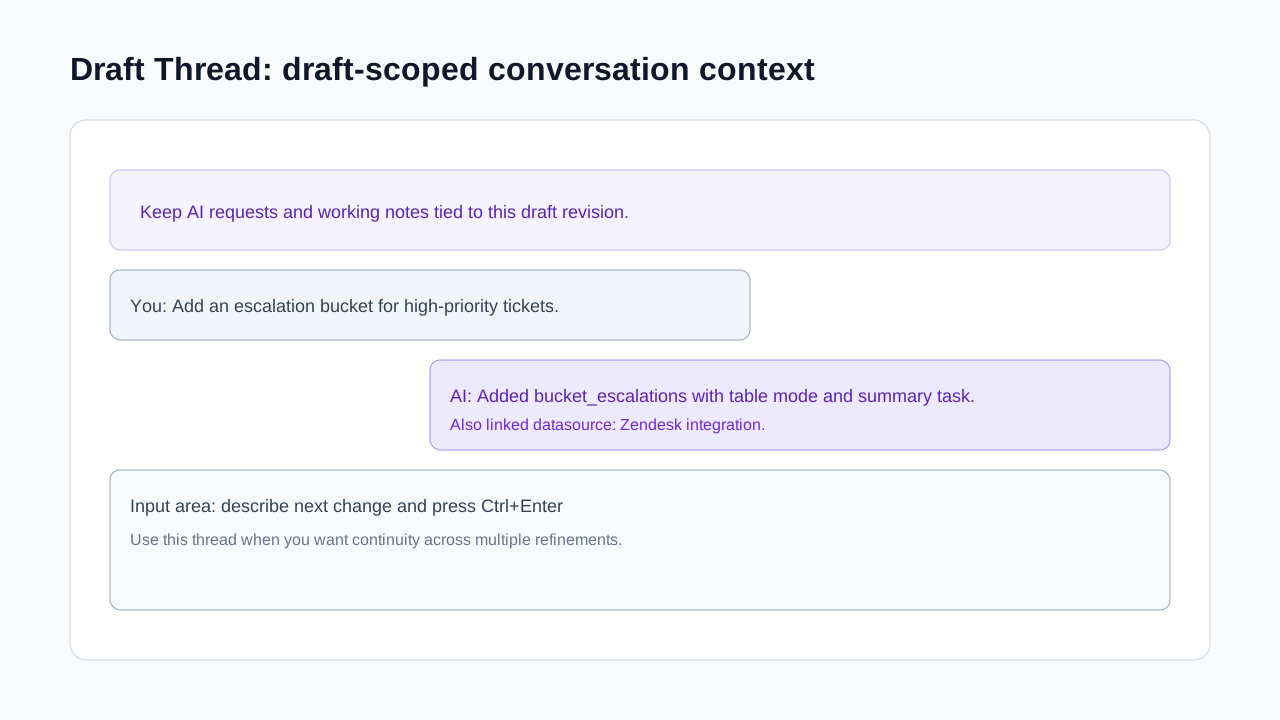
Draft Thread is draft-scoped collaboration context. Keep iterative requests there while you tune the draft. It is ideal for "next change" instructions and rationale notes.
Use it when you want continuity in refinements without losing context between edits.
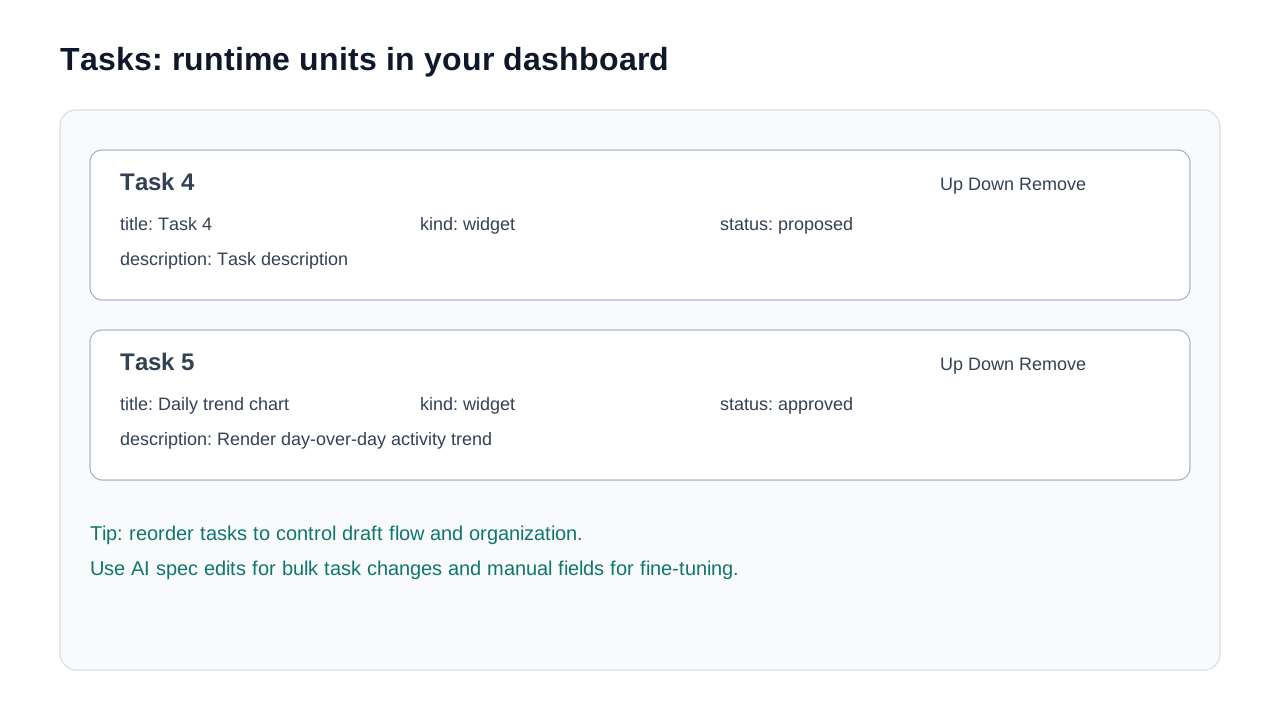
How Assistants work and how to add each type
Open Add assistant, choose a type, then configure name, prompt, allowed tools, and access mode. Assistant type determines behavior:
- Chat: answers dashboard questions in real time.
- Scheduled task: runs on cron to refresh/process data.
- Trigger: reacts to dashboard events.
- Notifier: sends Slack/email alerts when conditions match.
- Scraper: fetches and extracts web content on demand.
- Webhook listener: receives inbound HTTP POST payloads.